
Kubernetes Tunneling
Starting with v0.13.0, Tabularis supports Kubernetes port-forward tunnels as a first-class transport option, alongside SSH tunnels. You can connect to any database running inside a Kubernetes cluster by configuring a kubectl context, namespace, resource (service or pod), and container port — without keeping a manual kubectl port-forward alive in a terminal.
Requirements
kubectlinstalled and available in your$PATH.- A valid kubeconfig (
~/.kube/configor$KUBECONFIG) with access to the target cluster.
Tabularis does not embed a Kubernetes client — it delegates to your kubectl, so whatever contexts, auth plugins, and exec credentials work in your terminal work here too. If the defaults don't fit, both the binary and the kubeconfig can be overridden per connection.
How It Works
When a database connection has Kubernetes enabled, Tabularis:
- Runs
kubectl port-forwardas a managed child process for the configured context / namespace / resource / port. - Binds a free local ephemeral port on
127.0.0.1. - Points the database driver at
127.0.0.1:<local_port>instead of the in-cluster host.
You never need to choose a local port — Tabularis handles it automatically, exactly like the SSH tunnel system.
Tunnels are reused: two connections targeting the same context/namespace/resource/port share one port-forward process. Tabularis health-checks the tunnel and manages its lifecycle — the process is stopped when no connection needs it anymore.
Configuring a Connection
- Open the connection editor (new or existing connection).
- Switch to the Kubernetes tab and enable it.
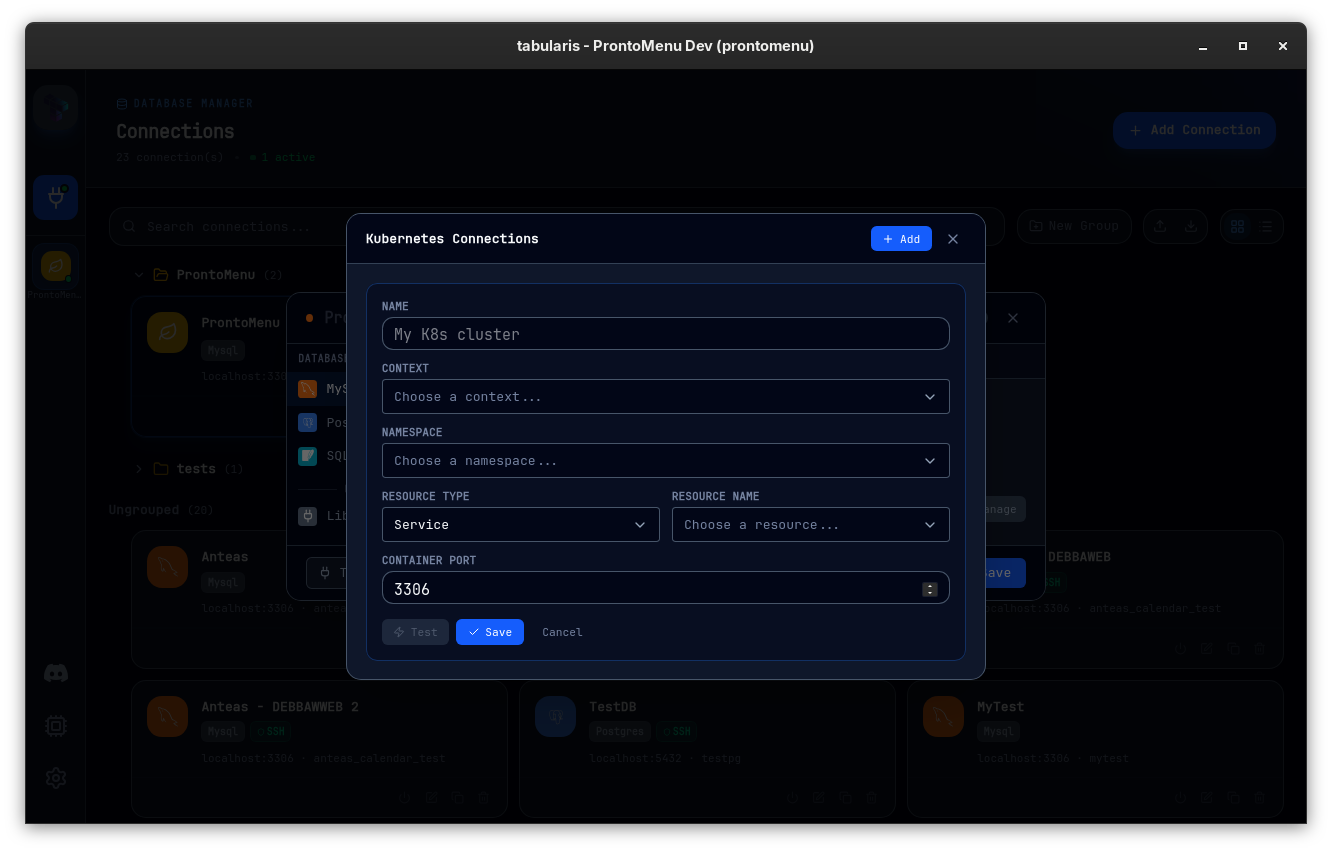
- Pick the configuration with cascading dropdowns, each discovered live via kubectl. The context, namespace, saved-connection, and resource-name selectors are searchable — type to filter long lists instead of scrolling.
- Context — from your kubeconfig.
- Namespace — listed from the selected context.
- Resource type and resource name — services and pods in the selected namespace.
- Container port — the port the database listens on inside the cluster. The default is driver-aware: it follows the selected driver's manifest
default_port(MySQL →3306, Postgres →5432, ClickHouse →8123, plugin drivers → their declared port) and can be derived from a service's actually-exposed port rather than always defaulting to MySQL's3306.
- Set the database credentials on the General tab as usual — host/port are replaced by the tunnel automatically.
- Test and save.
Kubernetes and SSH are mutually exclusive on a connection: enabling one disables the other.
Saved K8s Profiles
Like SSH profiles, Kubernetes tunnel configurations can be stored as reusable profiles in k8s_connections.json, separate from database connections. A single profile (e.g. "staging cluster / postgres service") can be reused across multiple database connections.
In the Kubernetes tab you choose between:
- Saved — pick an existing K8s profile from the dropdown.
- Inline — configure the tunnel directly on this connection.
Profiles are managed from the K8s Connections modal, where you can add, edit, delete, and Test each profile — the test performs a real port-forward attempt and reports the exact error on failure.
K8s profiles and per-connection settings round-trip through connection Export / Import like every other field.
Advanced: kubectl and kubeconfig Overrides
Since v0.16.0, each Kubernetes tunnel — inline or saved profile — has an Advanced settings section that overrides the two assumptions above:
- kubectl binary — point Tabularis at a specific
kubectl(a pinned version, a corporate wrapper, a shim outside$PATH) instead of whatever the app inherits from the environment. - kubeconfig file — use a per-project or per-cluster kubeconfig instead of
~/.kube/config/$KUBECONFIG.
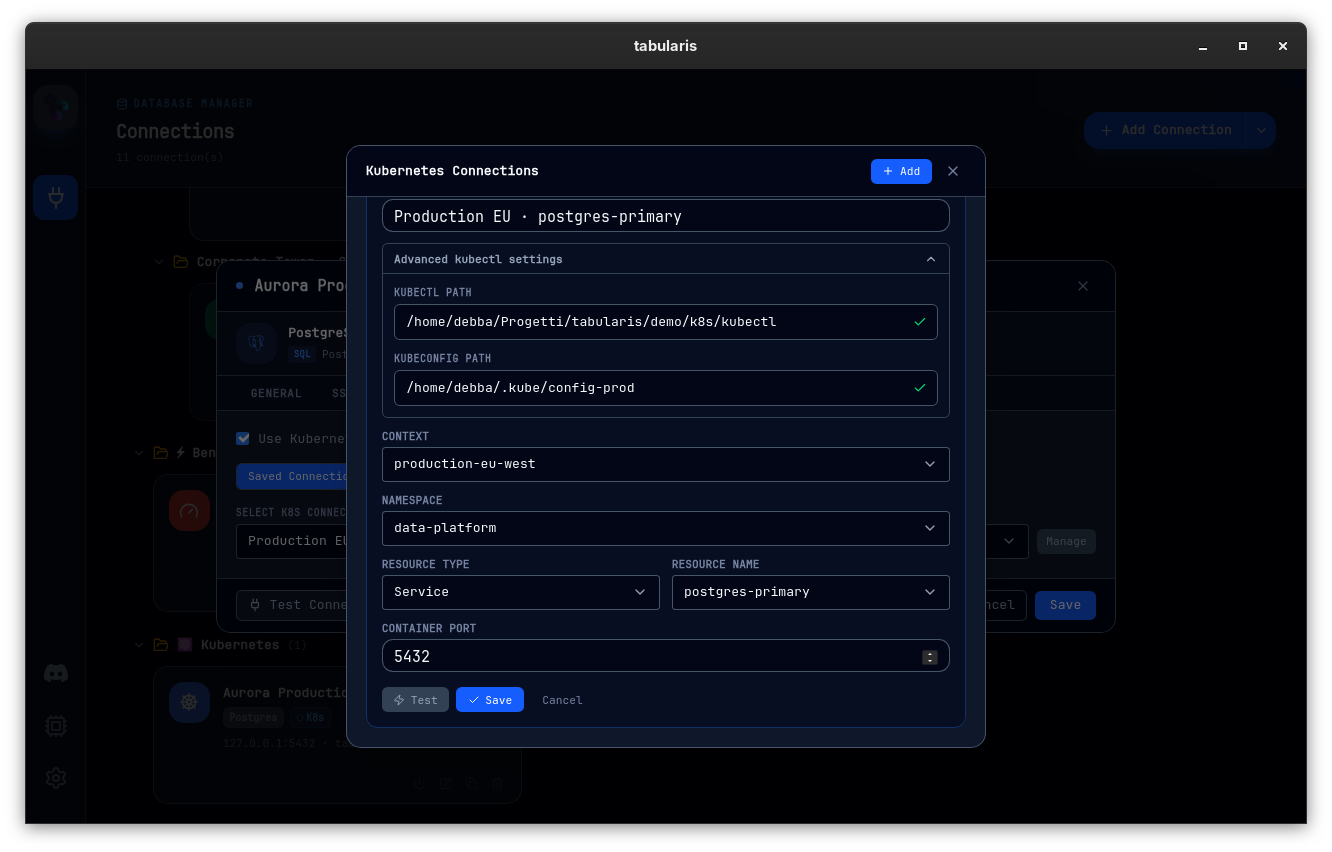
Both paths are validated before they are used: leaving the field triggers a preflight check that runs the configured binary against the configured kubeconfig and reports the exact error on failure, and incomplete or invalid pairs are refused before they can be applied. The overrides flow through every path that shells out to kubectl — dropdown discovery, the port-forward tunnel itself, profile tests, and the MCP server — and tunnel reuse takes them into account, so two connections reaching the same service through different kubeconfigs get separate tunnels rather than sharing a cached one.
Leave both fields empty to keep the default behavior.
Badges
Connections with a Kubernetes tunnel show a blue K8s shield badge on the Connections page (card and list view) and in the sidebar, so tunneled connections are recognizable at a glance.
MCP and Auxiliary Flows
The tunnel expansion is wired through every database command path — including the MCP server — so an AI agent querying a saved connection reaches the cluster through the same managed tunnel you use in the GUI.
Troubleshooting
| Symptom | Likely cause | Fix |
|---|---|---|
| "Missing K8s context" | kubeconfig not found | Check ~/.kube/config or set $KUBECONFIG |
| Dropdowns stay empty | kubectl not in $PATH |
Install kubectl or fix the PATH the app inherits |
| Tunnel up but connection refused | Wrong container port | Verify the port the database listens on inside the pod |
| Auth errors from kubectl | Expired credentials / exec plugin | Run any kubectl get pods in a terminal to refresh auth, then retry |
For more details, see Troubleshooting & FAQ.